Sharing and permissions
The Share dialog does two different jobs, and it keeps them apart on purpose. A public link lets someone outside the workspace read the page. Sending to a member points somebody who already has access at it. One grants, the other only aims.
The two halves of the dialog
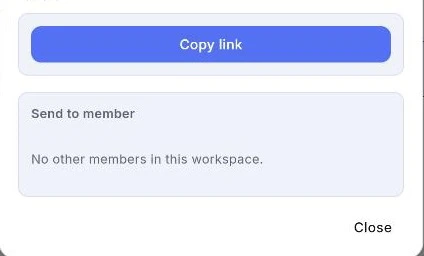
Share sits at the top right of a page and opens a dialog in two labelled parts: Public links and Send to member. They are not two ways of doing one thing.
A public link grants access to someone who has none. Sending to a member creates no link and no share row at all — the recipient simply gets a ShareInvite notification that deep-links to the page they could already open. The server refuses a recipient outside the workspace, because sharing points rather than grants, and quietly does nothing when you share with yourself.
- 1.Open the page, then press Share at the top right.
- 2.Use Copy link for someone outside the workspace.
- 3.Use Send to member to put a page in front of someone already in it.
Public links
Copy link creates the link and copies it in one action — the button reads Creating link… while it works, then a toast confirms Share link copied to clipboard. Links already made for this page are listed underneath, so the dialog is also the record of what is public.
The link is created as view-only and published. There is no edit-by-link.
Creating one needs edit rights, and so does listing what exists; the server answers 403 to anyone below that bar rather than showing a half-answer.
- 1.Press Copy link and paste it wherever it needs to go.
- 2.Look under Public links to see every link this page already has.
- 3.Treat it as publishing — anyone with the URL can read the page without a NoteKub account.
Send to member
Underneath the links is a list of the other people in the workspace, each with a Send button. Press it and the button walks through Sending… to Sent, and a toast names who it went to.
When there is nobody else in the workspace the section says so — No other members in this workspace — instead of showing an empty list.
- 1.Find the person in the Send to member list.
- 2.Press Send.
- 3.They get a notification that opens the page directly.
Revoking a link
Every listed link carries a Revoke button, which reads Revoking… while it works and then confirms: Link revoked — that page is no longer public.
Revoking deletes the row rather than disabling it, so the token stops resolving outright. It also stops the page counting against the account's published-page limit, which is the other reason to tidy up links you no longer need.
- 1.Open Share and find the link under Public links.
- 2.Press Revoke.
- 3.The URL stops working immediately — there is no grace period, and no way back to the same address.
Roles decide what the dialog offers
What Share can do follows the four workspace tiers. Owner and Member can create and revoke links; Guest and Viewer cannot, and the server enforces that regardless of what the UI drew.
A role change reaches you live. An edit refused after the fact usually means your tier changed while the page was open — the switcher is where to check what it is now.
- 1.Check your role under the workspace name in the switcher.
- 2.If a share action is refused, re-read the role before trying again.
- 3.Ask an Owner to change it — only they can manage members.
What a public link is, and is not
A public link opens the page in a public viewer, with no sign-in. That makes it a publishing decision, not a convenience: there is no per-person tracking, no expiry, and no password.
The only controls are the two ends — creating it, and revoking it. Everything between those is out of your hands, so the question worth asking before pressing Copy link is whether the page would be safe on the open web.
- 1.Read the page as a stranger would before you publish it.
- 2.Send the URL through a channel that suits the content.
- 3.Revoke it when the reason for it is over.