Databases
A database is one set of rows with one set of properties, shown through as many views as you want. Table, List, Gallery, Board and Calendar are five ways of looking at the same records — not five places to keep them.
One database, several views
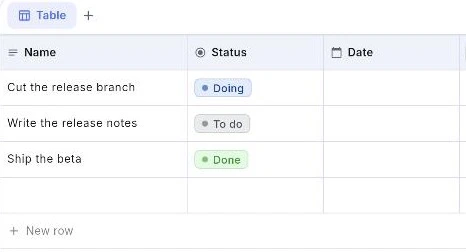
Views sit in a tab row above the table. A view has a name, a layout — Table, List, Gallery, Board or Calendar — and its own filters, sorts, hidden properties and grouping. What it does not have is its own data: every view reads the same rows and the same properties.
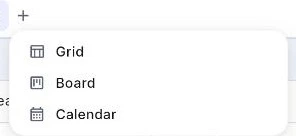
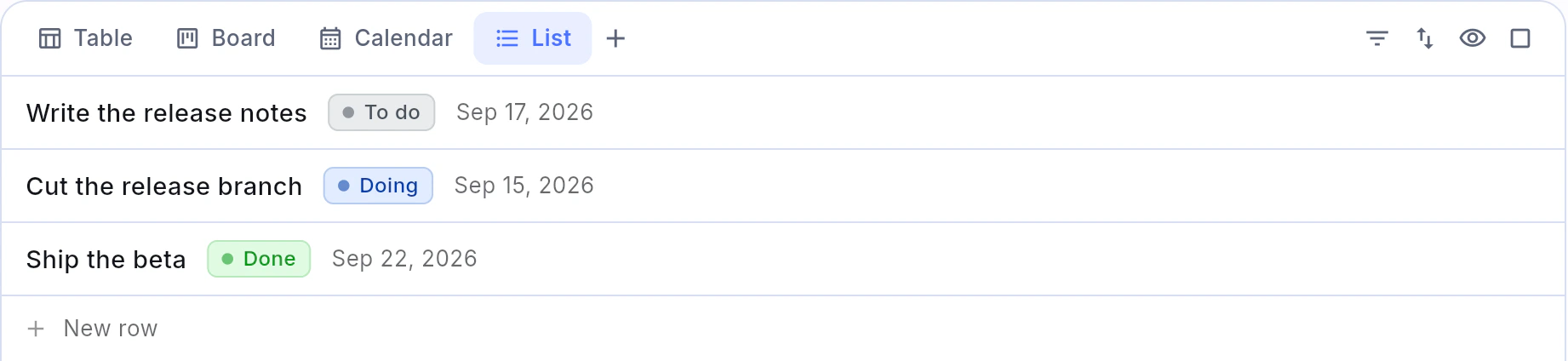
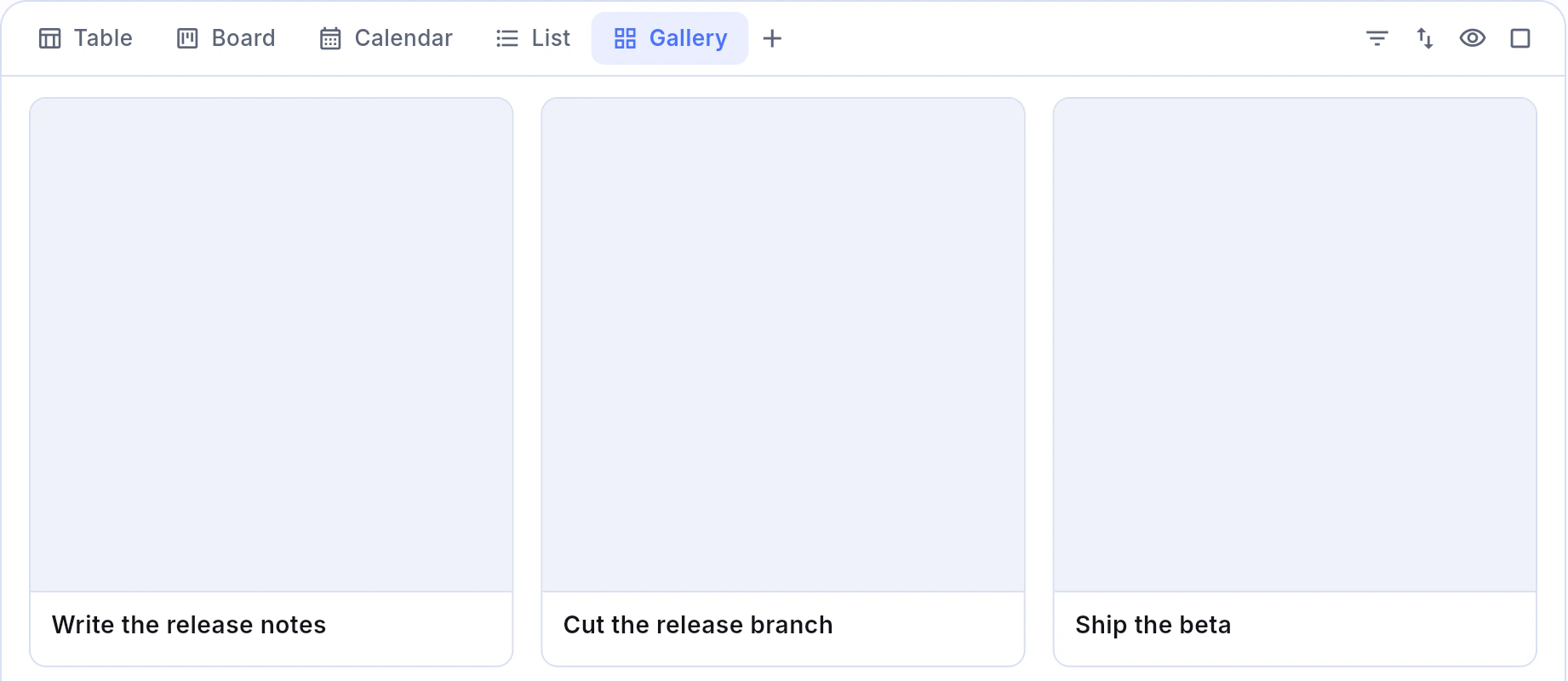
The + at the end of the tab row offers the five layouts by those names. List draws one line per row: the title first, then the visible properties that hold a value, and the row menu at the right edge. Gallery lays the rows out as cards.
The tab row's menu offers Add view, Rename view, Change layout and Delete view, so a Board is not a different object from the Table beside it — it is the same records drawn differently.
- 1.Use the + at the end of the tab row to add a view.
- 2.Open a view's menu to rename it, change its layout, or delete it.
- 3.Switching layout keeps every row exactly where it is; only the drawing changes.
Properties, and the fifteen kinds
A column is a property. There are fifteen types: Text, Number, Checkbox, Single select, Multi select, Date, URL, Checklist, Created time, Last edited time, Relation, Time, Media, Formula and Person.
Person behaves like a multi-select in every way that matters — it holds ids, shows names, filters and groups the same — and differs only in where the choices come from: the workspace's people rather than a list you typed.
Created time and Last edited time are written by the app, not by you. Formula is computed from the other properties in the same row.
- 1.Use the + at the right end of the header row for a new property.
- 2.Click a property's header to edit it — its name, its icon, its type.
- 3.The same menu offers Insert left, Insert right, Hide property, Wrap text and Duplicate.
- 4.A list, gallery, board or calendar has no header row, so use New property at the foot of the Fields menu instead.
Rows, and the record behind one
A row is a record, and a record is also a page: it has a title, its property values, and a body you can write in with the same editor as any other document.
New row sits at the bottom of the table, and pressing Enter in the last row makes the next one — a table has as many rows as somebody made.
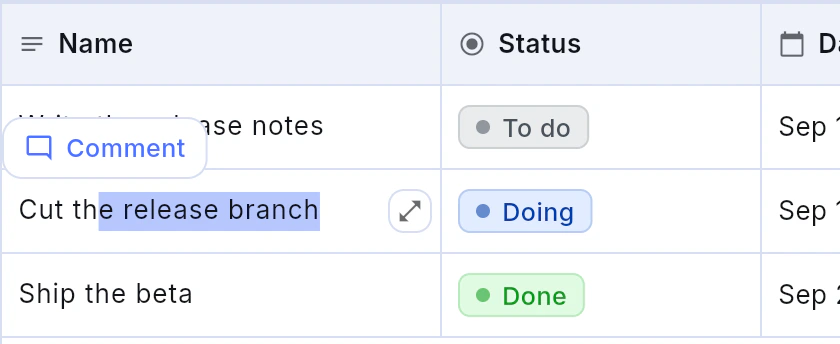
In a table embedded in a document, select words inside a cell and a Comment button appears. The thread opens in that document's comment rail quoting those words, and the cell keeps them highlighted; choosing the comment in the rail lights the cell up. A database opened as its own page does not offer it.
- 1.Click New row, or press Enter from the last row.
- 2.Click a row to open it in the way Open records in is set to.
- 3.Write in the record's body exactly as you would in a page — the slash menu works there too.
Filter, sort, and what is on show
Three menus sit above the table: Filter, Sort and Fields. Filter and Sort each start empty and say so; Add filter and Add sort build the rules, and Clear all removes them.
A filter is a property, an operator and usually a value. Six operators take no value at all — is empty, is not empty, is checked, is unchecked, is complete, is incomplete — and the value box disappears for them rather than sitting there doing nothing.
A sort can be yours alone or everyone's. The switch says Show this sort to everyone, and the line under it says which you have: everyone looking at this view sees this order, or only you see this order.
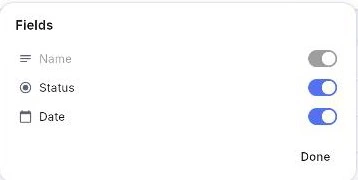
Fields lists every property with a Show in this view switch, and counts what is hidden, so a view can be narrowed without deleting a thing.
- 1.Open Filter, press Add filter, then pick the property and the operator.
- 2.Open Sort, press Add sort, and choose ascending or descending.
- 3.Open Fields to hide a property in this view only.
Board
A board groups the rows by one select-style property, and each group is a column of cards. Dragging a card between columns sets that property — moving a card is editing the record, not filing it somewhere else.
Groups that are empty or unwanted can be put away: Hidden groups collects them and says No hidden groups when there are none. New and Add a new group make another option on the grouping property itself, which is why a group made on the board also exists in the table.
Cards can carry a colour, set from Card color, with Default (no color) as the way back.
- 1.Add a Board view, then choose the property to group by.
- 2.Drag a card to another column to change that property's value.
- 3.Drag a card onto Drop here to delete to remove it.

Calendar
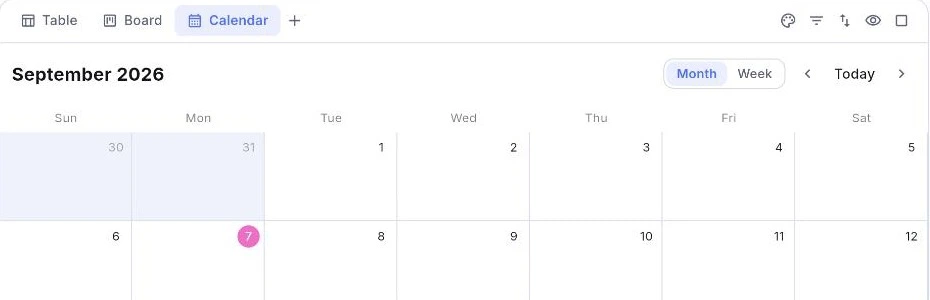
A calendar places the rows on the month by one date property. A row with no date is not on the calendar; changing which date property the view uses moves everything at once.
Dragging a card to another day writes that day into the date property, the same way a board's drag writes the group.
- 1.Add a Calendar view and pick the date property it lays out on.
- 2.Drag a card to another day to change its date.
- 3.Use Today to come back to the current month.
Calculations and formulas
The foot of a column carries a calculation. It starts at Calculate and offers Count, Filled, Empty, Sum, Average, Min, Max, Checked and Unchecked — the last two only where a checkbox makes them mean something.
A Formula property is written per column and computed per row, over the other properties in that row. The editor lists what you can reach, grouped as General, Math, Text, Date and Logic, and shows a live Preview and the resulting type as you type.
The vocabulary is the familiar one: prop to read a column, if and ifs, and, or and not, round, floor, ceil, abs, min, max, mean, mod, pow and sqrt, concat, join, split, slice, substring, replace and replaceAll, length, lower and upper, contains and includes, empty, now, date, dateAdd, dateSubtract, dateBetween, formatDate, and the parts of a date from year down to minute.
- 1.Click under a column to pick its calculation.
- 2.Add a Formula property, then press Edit formula.
- 3.Pick from the grouped list rather than typing a name from memory — the preview tells you whether it worked before you close the editor.