NoteKub guide
Search, notifications and tabs
Three ways of getting somewhere, and they do not overlap. Search finds a page by what is written in it. Tabs keep several pages open at once. The inbox brings you to whatever somebody else did.
Search, and what it reads
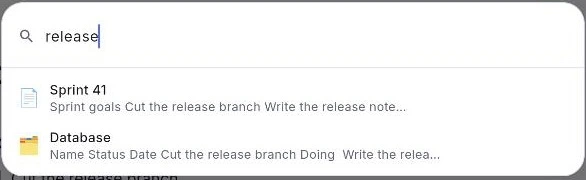
⌘P opens a palette anchored to the top of the window; the sidebar's Search box opens the same thing. The hint says Search pages…, and picking a result navigates straight there.
It reads more than titles. A page whose title matches is listed by its title; a page that matched on its contents is listed with a snippet of the surrounding text, so you can see why it is in the list. Documents are searched by their text, databases by their field names and their cell values.
Open editors are preferred over the saved copy on disk, which means what you typed a moment ago and have not saved yet is already findable.
- 1.Press ⌘P, or click Search at the top of the sidebar.
- 2.Type a few words — of a title, or of anything written inside a page.
- 3.Press Enter on a result to go to it.
Tabs, on the wide layout
Above the page body is a strip of open pages: click to switch, ✕ to close, + to open another in its own tab. The active tab is painted in the page's own canvas colour so it reads as attached to the body underneath, while the strip behind it stays on the softer chrome colour.
Right-click a tab — or long-press it — for Duplicate tab, Close tab and Close other tabs.
The strip is wide-layout only. A narrow window has no room for it, and a tab is only ever a page id, so nothing is lost by its absence.
- 1.Press + at the end of the strip to open a page in a new tab.
- 2.Click a tab to switch, ✕ to close it.
- 3.Right-click a tab for Duplicate and Close others.
The new-tab picker is a browse, not a search
The + button does not open the search palette. It opens a picker that lists every page up front, with a filter box reading Open in new tab… for workspaces too big to scan by eye.
That is the difference on purpose: choosing which page to open in a tab is browsing, and browsing wants the whole list in front of you. Searching is for when you already know what you are after.
The picker also carries New page, so a tab can start empty rather than on something that already exists.
- 1.Press + on the tab strip.
- 2.Scroll the list, or type to filter it.
- 3.Choose a page — or New page to start a fresh one in that tab.
The sidebar, and the column it shares
⌘\ shows and hides the sidebar. On a narrow window it is a drawer that closes with ✕; on a wide one it folds away with a panel mark.
The window has one left column and two things that want it: the page tree, and whatever panel the open page puts there. They take turns rather than stacking, so you never get a picker floating over the tree or a tree hidden behind a picker. Whoever asked last has it.
A page that opens a panel there closes it on the way out, so it cannot outlive the page in somebody else's window.
- 1.Press ⌘\ or Ctrl+\ to fold the sidebar away and back.
- 2.On a phone-width window, use ✕ to close the drawer.
- 3.Open a page with a panel of its own and watch the column change hands.
The inbox as navigation
The bell at the top of the sidebar is not only a list of things that happened — it is a way to get to them. Tapping a notification navigates to whatever it points at, and that is also what marks it read.
The destination may be in a workspace this sidebar is not currently showing, so the app handles the jump rather than the sidebar: it switches workspace if that is what it takes.
- 1.Press the bell beside the workspace name.
- 2.Tap the row you want to act on.
- 3.You land on the page, in the right workspace, with the notification marked read.
Where you are, and getting back up
The breadcrumb across the top of the page names the space, then each page above this one, up to the one you are on. Every step in it is a link, so going back up a branch is one click rather than a hunt in the tree.
In the sidebar the current page is marked, and its parents are expanded to reach it — so the tree always shows where you are, not where you last left it.
- 1.Read the breadcrumb to see the whole path.
- 2.Click any step to jump to that level.
- 3.Use the chevron on a row to fold a branch you are done with.
Favorites, for the pages you are actually in
Starring lifts a page into a FAVORITES section above the spaces, which is the shortest route of all — no search, no tree, one click, however deep the page sits.
Because favourites live in the shared page tree rather than per device, a star in a Cloud workspace is part of the structure everyone sees.
- 1.Open a page and press the star at the right of its top bar.
- 2.Or use ⋯ → Add to Favorites on the page's row in the sidebar.
- 3.Unstar from the star at the right of the row in the FAVORITES section.