NoteKub guide
NoteKub website
notekub.dev is the public site — the product pages, the pricing page, and the manual you are reading. The workspace itself is a different origin: app.notekub.dev. Nothing you type here is your data, because there is no account on this side of the line.
Two languages, two real paths
English lives at the root and Thai under /th/ — so the pricing page is /pricing/ and /th/pricing/, and this guide is /manual/website/ and /th/manual/website/.
They are real pages, not a runtime switch: the site is a static export, so each language is built and served as its own HTML. That is also why the switcher in the header knows which page to send you to — it maps the page you are on to its twin, rather than dropping you at the home page.
- 1.Use the language control in the header to switch.
- 2.The label is written in the language it switches to — English, or ไทย.
- 3.The URL changes to match, so a link you copy carries the language with it.

What is on the site
Product describes what NoteKub does. Pricing says what it costs. Manual is these guides. Open app takes you to the workspace, and it is the only link on the site that leaves it.
The header carries all four; on a narrow screen they collapse into a menu behind a button rather than disappearing.
- 1.Read Product for an overview.
- 2.Read Pricing before you commit to anything.
- 3.Come back to Manual whenever you are stuck.
Finding your way around the manual
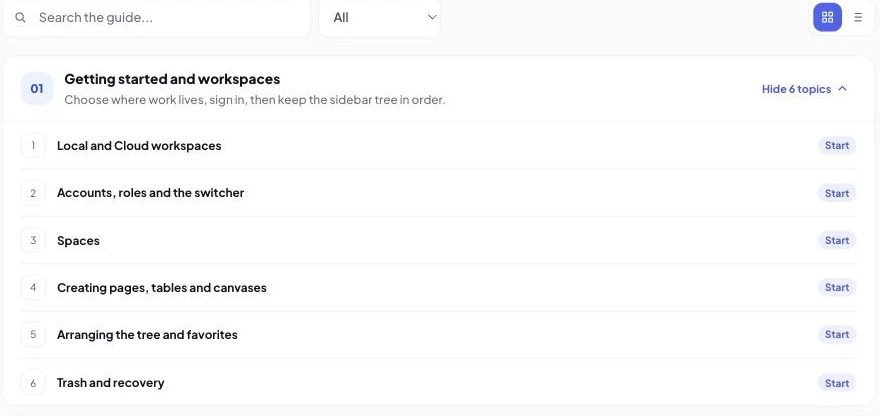
The manual index lists every guide with its level, how long it takes to read, and the topics inside it. A search box filters as you type, over titles, summaries and topics alike; a level filter narrows it to Beginner, Intermediate or Advanced.
Two view buttons switch between cards and a two-column list — the same guides, laid out for a different way of scanning.
Each guide row expands to show its topics, and every one of them is a link into the guide.
- 1.Type in the search box to narrow the list.
- 2.Use the level filter if you only want the beginner material.
- 3.Press a guide's Show topics to see what is inside before you open it.
Inside a guide
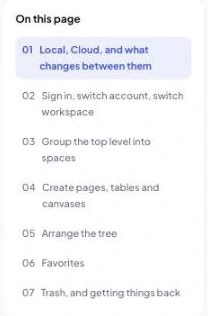
A guide is numbered sections down the middle, with On this page beside them so you always know how much is left and can jump.
Where a guide has one, a shortcuts card sits under the contents — the keys worth knowing for that topic, and a tip below them.
The metadata line under the title says the level, the reading time and when the guide was last updated, and the button beside it opens the app at the thing the guide is about.
- 1.Use On this page to jump to the section you need.
- 2.Read the shortcuts card before you start, not after.
- 3.Check the updated date — a guide that predates a release may be behind it.
It is a static site, and that is the point
There is no login here, no workspace data, and no account settings. The site is exported as static HTML, which is why it loads fast and why there is nothing on it to sign in to.
Everything that creates, reads or changes your data happens at app.notekub.dev, behind a sign-in. The two are separate origins on purpose.
- 1.Use Open app for anything involving your own content.
- 2.Expect a sign-in there, and none here.
- 3.A share link someone sends you also opens on the app side, not this one.
Reading it on a phone
The layout is responsive: the header collapses to a menu, the guide's contents move above the text rather than beside it, and the figures scale to the column.
Wide content — a table, a code block, a diagram — scrolls inside its own box rather than pushing the page sideways, so the page itself never scrolls horizontally.
- 1.Open the menu button for the nav on a narrow screen.
- 2.Scroll a wide table sideways inside its own frame.
- 3.Everything else reflows to the width you have.
Getting to the guides from anywhere
The manual is linked from the header on every page of the site, in both languages, and from the footer.
Each guide has a stable URL of the form /manual/<topic>/ — so a link to one keeps working, and is worth pasting into a thread rather than describing where to click.
- 1.Copy the URL from the address bar to link a specific guide.
- 2.Add /th/ in front to link the Thai version of the same page.
- 3.Link the section too — every heading has its own anchor.