NoteKub guide
Collaboration and comments
A Cloud workspace is a place several people are in at once. Presence shows who is there now, comments keep the argument attached to the sentence it is about, and the inbox is how you hear about it when you were not looking.
Members, and the four tiers
Manage members lives in the workspace switcher and opens the Workspace members dialog: the list, an Invite by email box, a role beside each person, and a remove button. It is Cloud-only — a Local workspace has nobody to manage.
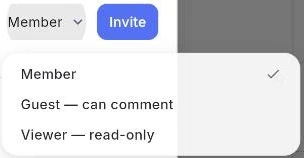
There are four tiers. Owner and Member may change content and structure. Guest is the reviewer tier and Viewer is read-only, which is why the invite dropdown spells them out rather than leaving the word to speak for itself: Guest — can comment, Viewer — read-only.
Only the owner can manage members. Try it as anyone else and the dialog says so in as many words rather than failing quietly; the server enforces the same rule regardless of what the UI offers.
- 1.Open the workspace switcher, then Manage members.
- 2.Type an email, choose the role, and press Invite.
- 3.Change someone's role from the dropdown beside their name, or remove them entirely.
Who else is here
A row of coloured circles sits in the page's chrome, one per person on the document right now, each carrying the first letter of their name and their full name on hover. Nobody else there means no row at all, rather than an empty box.
The colour is theirs, not the page's, so the same person is the same colour in the presence row and at their caret in the text.
- 1.Open a page in a Cloud workspace and watch the row appear as people arrive.
- 2.Hover a circle to see whose it is.
- 3.Their caret in the document carries the same colour.
Comment on the thing you mean
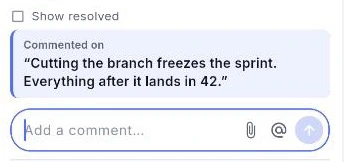
Select the text first, then comment. The thread is anchored to that selection, and the quoted text rides along at the top of the thread — which is what answers "which highlight is this conversation about?" three weeks later.
Threads open in a rail docked to the right edge rather than a modal over the page, so the page stays readable while the conversation is on. When there is no room for a rail — a page opened in a peek, a narrow window — the same panel arrives as a sheet from the right instead.
The rail is honest about unfinished work. Leaving with an unsent comment asks Discard comment? and offers Keep writing; leaving a comment you were editing asks Save changes? and offers all three answers, including going back to editing.
- 1.Select some text and press ⌘⇧M, or use the comment button on the selection bar.
- 2.Write the first comment and submit it.
- 3.Press Reply to answer inside the thread rather than starting a new one.
Mentions, reactions, attachments
Typing @ in a comment opens autocomplete over the workspace's members. What is submitted is a real mention node, not the characters "@name" — which is precisely what makes the other person's inbox light up. If the member list cannot be fetched the autocomplete is simply empty; it never blocks you from commenting.
Mentions are a comment feature. The document body does not have them yet.
A comment carries up to five files, each up to 300MB. Pick more than there is room for and the extras are dropped before the upload rather than after it. Images come back as thumbnails in the thread, and the bytes are cached for the session so a thread that rebuilds on every reaction does not re-download the same picture.
Reactions are emoji, picked from a panel that opens beside the button you pressed rather than in the middle of the screen.
- 1.Type @ and choose a name from the list.
- 2.Press the paperclip to attach files — five per comment, 300MB each.
- 3.Press the emoji button on a comment to react to it.
Resolve, reopen, and what is left showing
A finished thread is resolved, not deleted. The same button reads Reopen once it is, so a decision that turns out to be wrong comes back with its argument intact.
Resolved threads leave the rail by default; a Show resolved switch brings them back into view.
A comment's own ⋯ menu offers Edit and Delete. Deleting is registered on the page's undo timeline, so it is undone the same way anything else on the page is.
- 1.Press the tick on a thread to resolve it.
- 2.Turn on Show resolved to see the ones already closed.
- 3.Use a comment's ⋯ menu to edit or delete it.
The inbox
The bell at the top of the sidebar is the notification inbox, newest first, with the unread ones emphasised and Mark all as read at the top. Opening the panel marks nothing — tapping a row does, which is what keeps the count honest.
Seven things reach it: someone invited you to a workspace, shared a page with you, mentioned you, commented, replied to your comment, changed your role, or removed you from the workspace. Each is one line naming who did it.
The inbox belongs to the account, not to the workspace you happen to have open — so it is still there while you are looking at Local, and the count is the same whichever workspace you switch to.
Tapping a notification navigates to what it points at, even when that is in a workspace this sidebar is not currently showing.
- 1.Press the bell beside the workspace name.
- 2.Tap a row to go to what it is about — that is also what marks it read.
- 3.Use Mark all as read to clear the count in one go.

When the sync is behind
Unsynced work is counted across every workspace you have open, not just the visible one. Switching workspace leaves the other one's connection alive and still draining, so a count that only looked at the workspace in front of you would wave through a reload that loses what you left behind.
That count is what stands between you and closing the tab on work that has not reached the server.
- 1.Watch for the warning before closing or reloading with unsent changes.
- 2.Give it a moment to drain rather than forcing the reload.
- 3.If an edit is refused after your role changed, re-read your role in the switcher before trying again.